

Win7UpgradeMate: Easily Upgrade Windows 7 to Windows 10 without Data Loss (Keep Personal Files and Apps)
 Last Updated on Feb 10, 2026 by Adams Steven ( Comments)
Upgrading from Windows 7 to Windows 10 can feel overwhelming, especially if you're worried about losing your important files, installed apps, or personalized settings. That's where Win7UpgradeMate comes in. This dedicated upgrade tool is designed to make the transition from Windows 7 to Windows 10 seamless and safe. It ensures that all your data, programs, and system configurations remain intact while guiding you through the upgrade process step by step.
How to Upgrade Windows 7 to Windows 10 without Losing Data
Whether you're upgrading for better performance, improved security, or to access the latest Windows features, Win7UpgradeMate makes the journey straightforward even for beginners. Here is the step-by-step guide.
Step 1 Download and Install Win7UpgradeMate
First of all, download and install Win7UpgradeMate on your PC.
Step 2 Download Windows 10 ISO File from Microsoft
Windows 10 is end of support and the ISO image is no longer available for download. However, you can easily download Windows 10 ISO image from this trusted website:
https://os.click/en/Windows:Windows_10
Please choose the correct version, edition, language and architecture based on the prompt. You will get a download link at the end of the process.
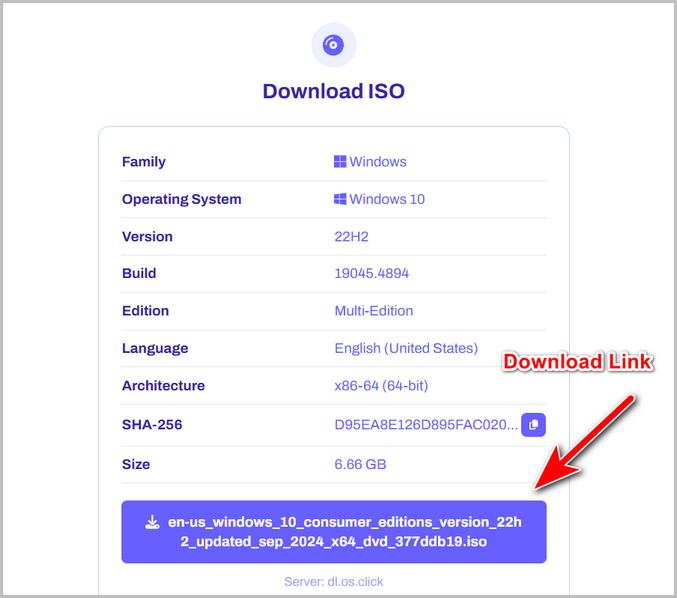
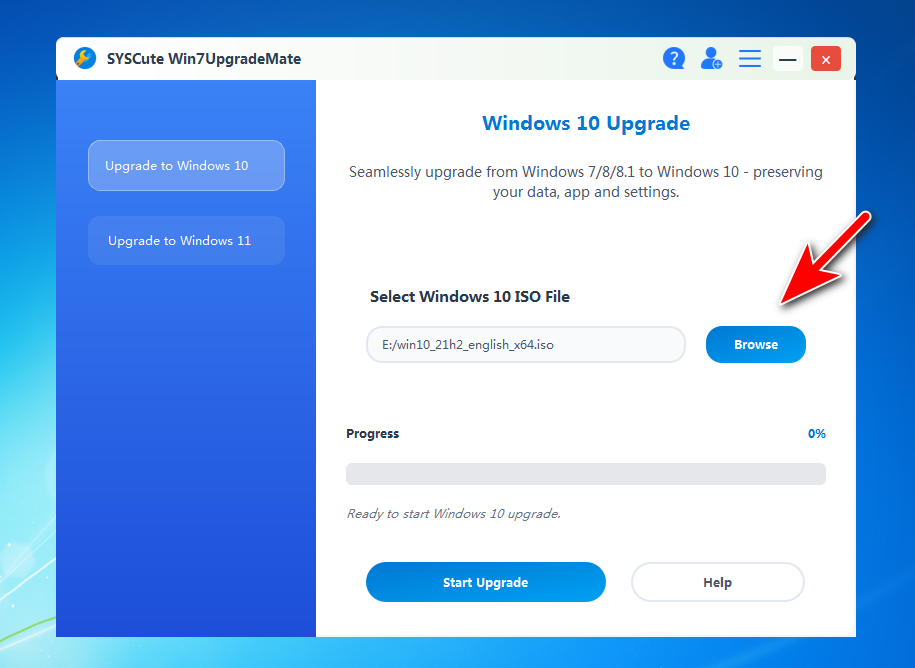
Step 3 Import Windows 10 ISO into the App
Open the Win7UpgradeMate app on your computer and click the Browse button to add the Windows 10 ISO image into the app.
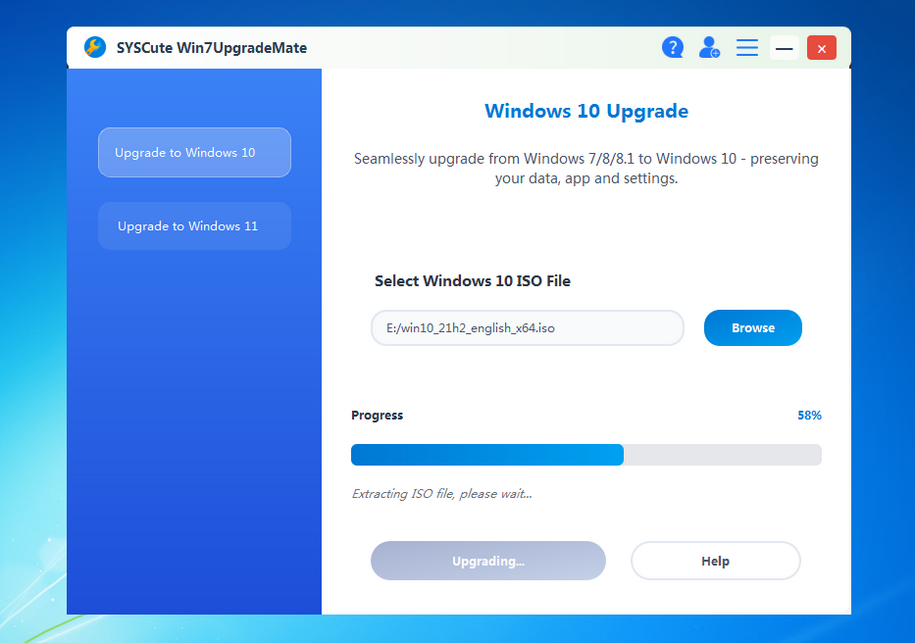
Step 4 Extract Windows 10 ISO Image
Windows 7 is unable to open and mount ISO image by default. We need to extract the Windows 10 ISO file first before upgrade. Please click the Start Upgrade button to do that.
Step 5 Start Upgrading Windows 7 to Windows 10
When extractin ISO file is done successfully, you will see the following screen.
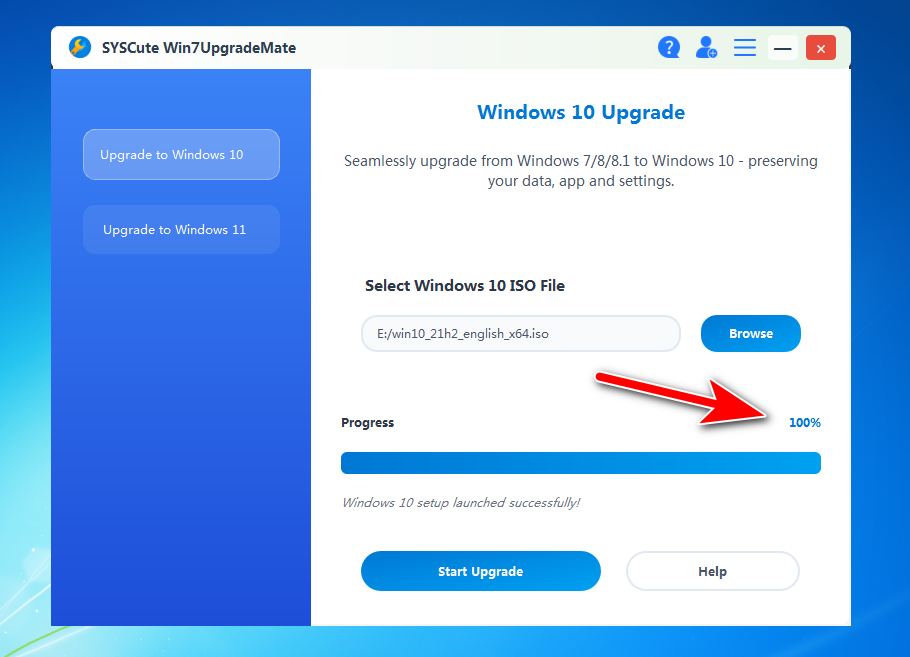
You need to wait a couple of minutes before Windows 10 setup program appears in the task bar.
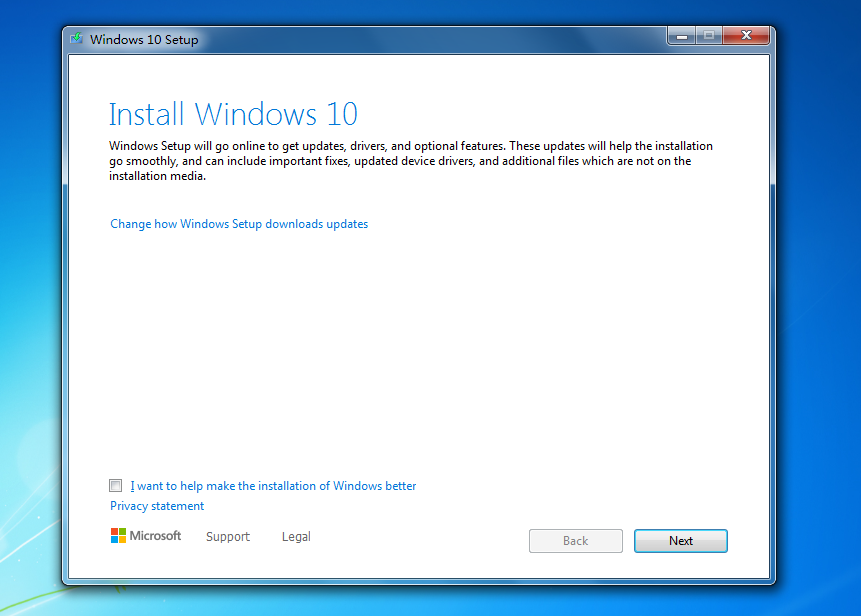
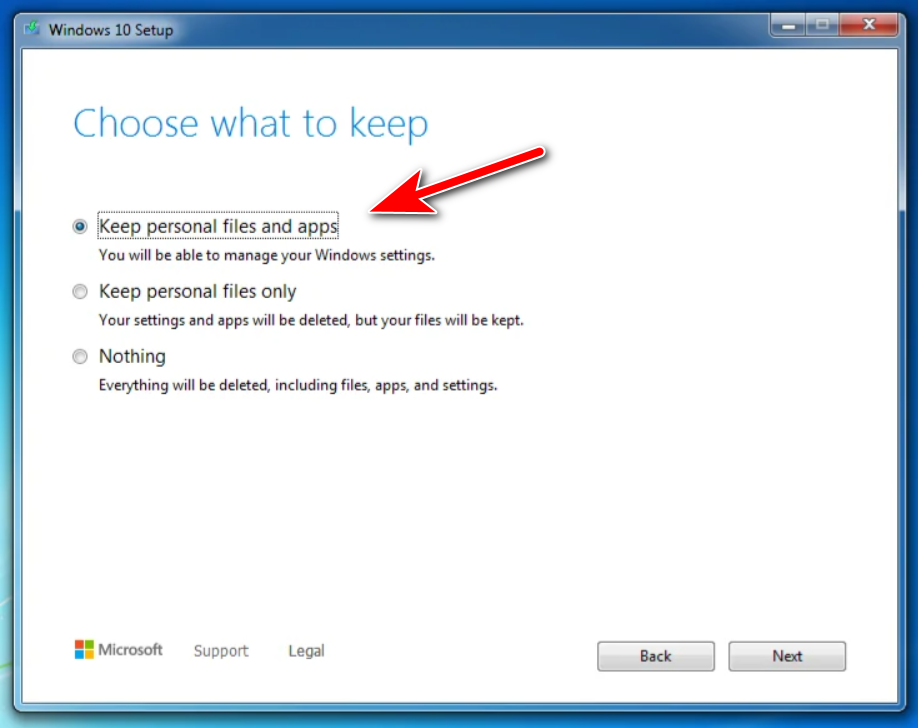
The setup wizard will downloading updates and checking the PC before upgrade gets started. Please follow the screen-prompt to finish the upgrade. All your files, apps and settings are well kept!
Summary
By following the steps outlined in this guide, you can easily upgrade from Windows 7 to Windows 10 without the stress of losing data or starting from scratch. Win7UpgradeMate takes the complexity out of the process and gives you a smooth, worry-free transition to a modern operating system. With your files, apps, and settings preserved, you can enjoy the benefits of Windows 10 right away—faster performance, stronger security, and continued support from Microsoft. Upgrading has never been simpler or safer.
💬 Reviews